
- Overview
- Account guides
- How to check a document
- How to interpret a plagiarism report
- Grammar checker released to improve writing!
- Summary of levels of access
- Owner role overview: managing an account
- How to add users to your account
- Teacher role overview
- Student role overview
- Fingerprint: Advanced Tool for Authorship Verification
- Cómo utilizar un informe de plagio
- Cómo verificar un documento en busca de plagio
- How to Use PlagiarismCheck.org with Zapier
- How to use the template exclusion feature for LTI 1.3
- How to use the template exclusion feature in Moodle plugin
- Blackboard
- Brightspace
- Canvas
- Google Classroom
- Moodle
- Schoology
How to use the template exclusion feature in Moodle plugin
- Install the new plugin, version v3.16-6.
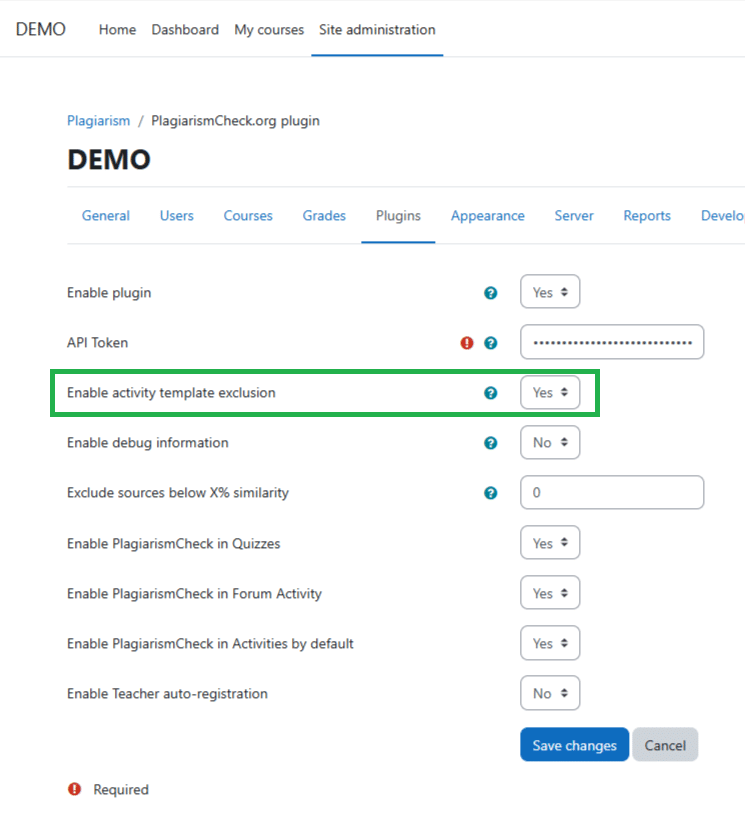
- In Moodle, go to Site Administration → Plugins → Plagiarism → PlagiarismCheck.org.
- Select “Yes” in the “Enable activity template exclusion” field, then save the changes.
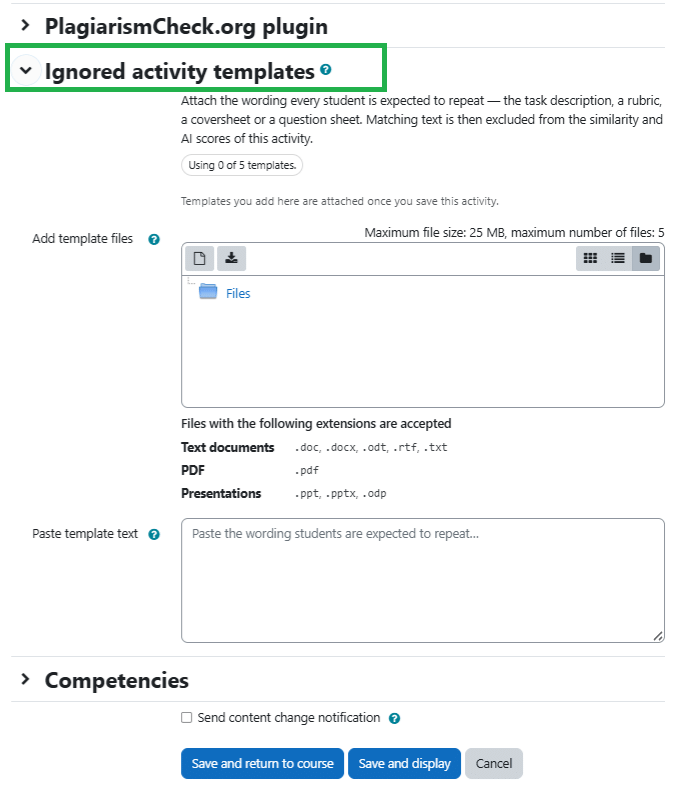
- You can add templates when creating a new assignment or editing an existing one. To do this, open the assignment settings and go to the “Ignored activity templates” section.
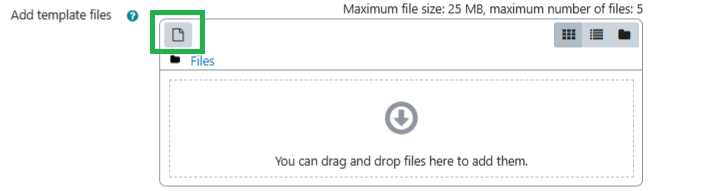
- In the “Add template files” field, you can drag and drop template files or add them using the “Add” button.
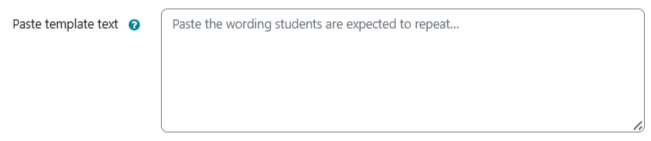
- You can also copy and paste a template as plain text into the “Paste template text” field.
- Template-related restrictions:
- up to 5 templates per assignment;
- each template must contain at least 20 words;
- accepted file formats: .doc, .docx, .odt, .rtf, .txt, .pdf, .ppt, .pptx, .odp;
- users can upload files or paste text, but they cannot do both in the same save.
- After saving an assignment with a template, a new “Existing templates” section will appear.
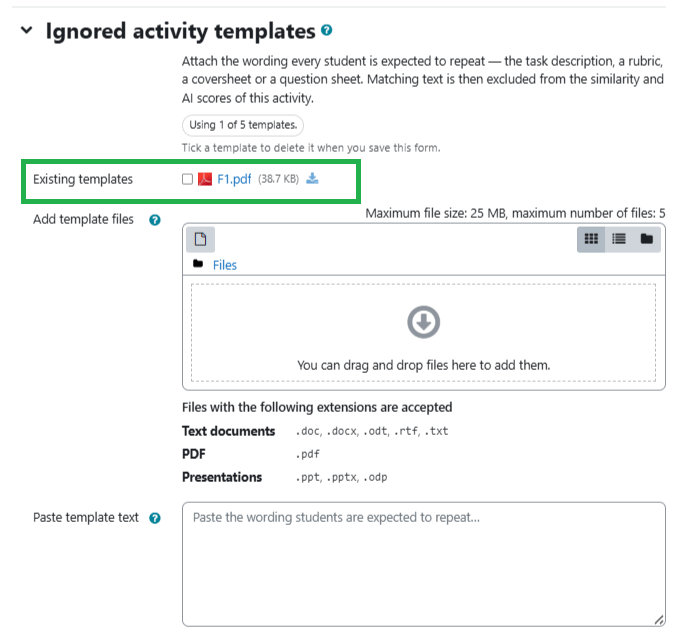
- Users can also delete templates. To do this, select the checkbox next to the appropriate template and save the assignment.
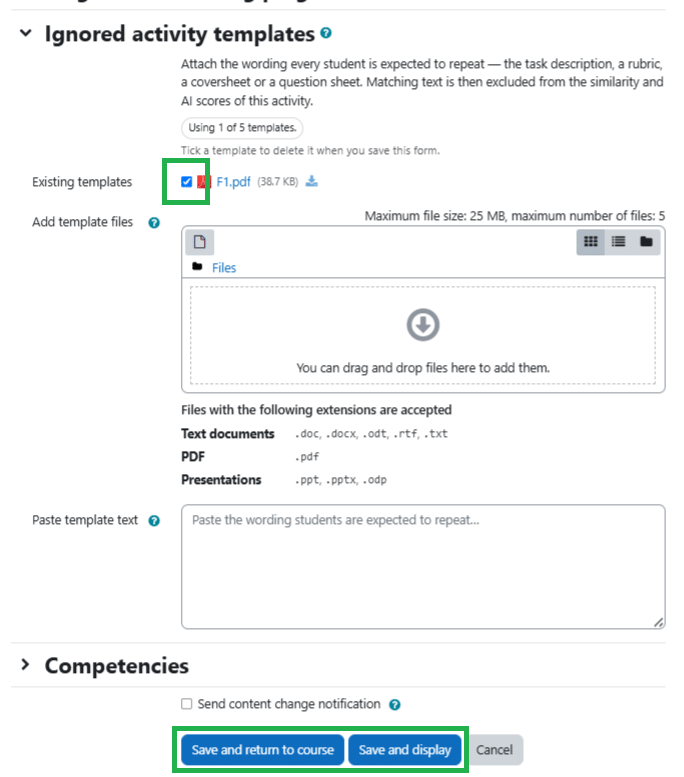 Please note: Changing the assignment templates will automatically trigger a new check of all submitted papers.