
- Overview
- Account guides
- Blackboard
- Brightspace
- Canvas
- Instructors’ guide: how to use an integration
- Administrator’s Guide – How to connect PlagiarismCheck with Canvas LTI 2.0 (Legacy)
- If a document wasn’t checked
- Administrator’s Guide – How to connect PlagiarismCheck with Canvas LTI 1.3 (Dynamic Registration)
- Google Classroom
- Moodle
- Schoology
Administrator’s Guide – How to connect PlagiarismCheck with Canvas LTI 1.3 (Dynamic Registration)
This guide walks Canvas administrators through enabling the PlagiarismCheck.org LTI 1.3 integration using dynamic registration. Once enabled, instructors can attach PlagiarismCheck to any assignment, students submit their work directly inside Canvas, and originality reports plus grades flow back automatically.
Before you start
You’ll need:
- Administrator access to your Canvas instance.
- An active PlagiarismCheck.org organisation account with Admin (Owner) role. If you don’t have Admin access, but you need it, please contact us here.
Step 1: Navigate to Integrations
- Login to PlagiarismCheck and follow Profile → Integrations or just click on this link https://plagiarismcheck.org/profile/integrations-list. On the list of integrations scroll until you see Canvas.
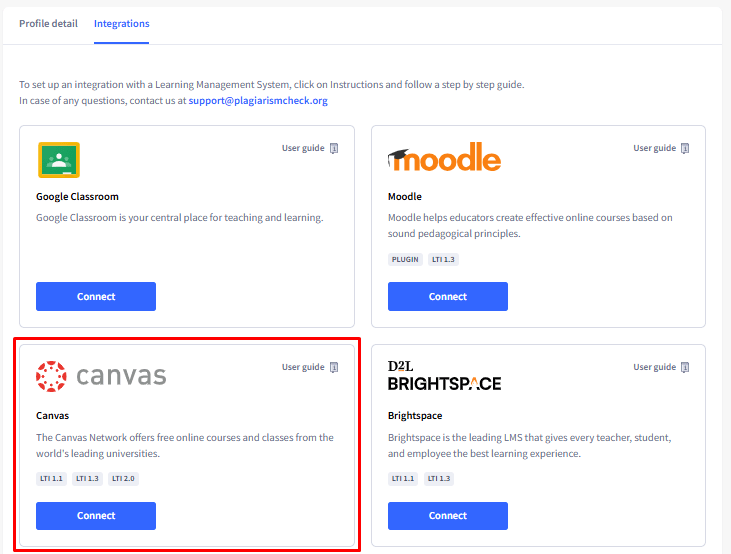
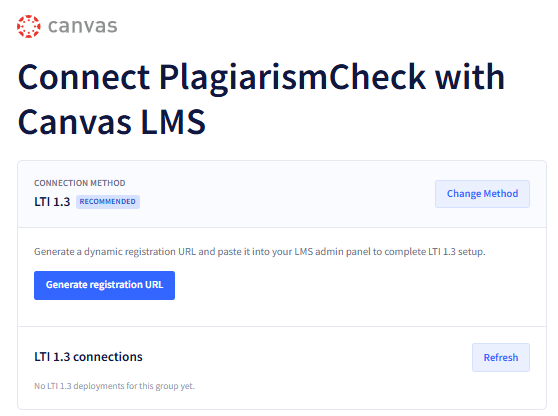
Step 2: Generate your registration URL
- On the PlagiarismCheck registration page, select Dynamic tab, click Generate registration URL and then Copy.
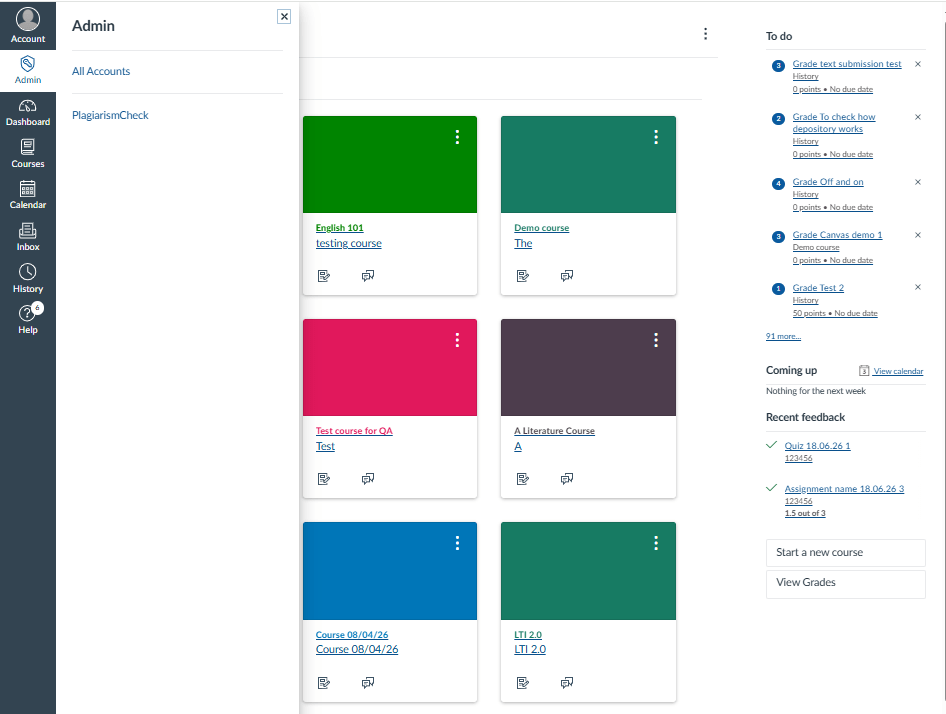
Step 3: Open Developer Keys in Canvas
- Sign in to Canvas as a root administrator. Open the Admin menu, choose your institution, then in the left navigation click Developer Keys.
Step 4: Start LTI Registration
- Click the + Developer Key dropdown in the top right of the page and choose + LTI Registration . Canvas opens the Register App dialog.
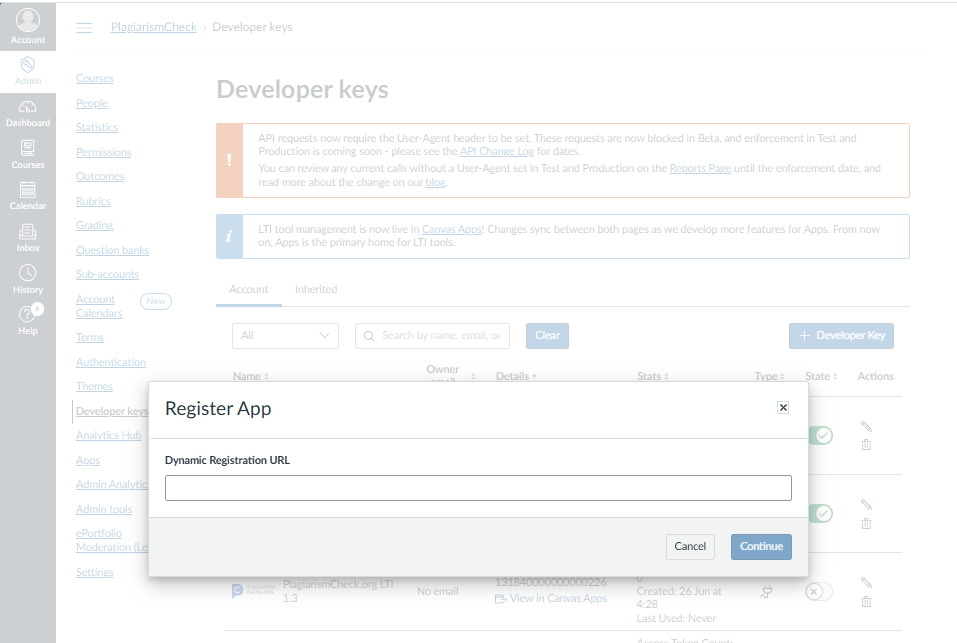
- Paste your URL into Dynamic Registration URL and click Continue.
Step 5: Review the tool’s permissions
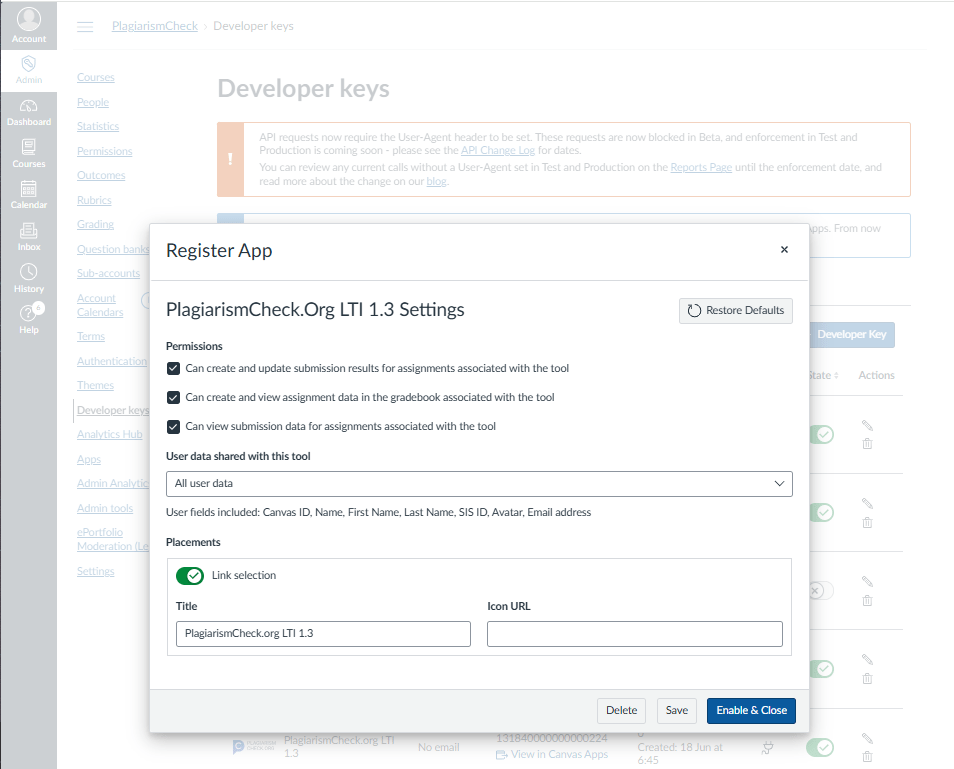
- Canvas shows a PlagiarismCheck.Org LTI 1.3 Settings panel. Leave the three Permissions checkboxes ticked — they’re what lets PlagiarismCheck post grades back and read assignment data:
- Can create and update submission results for assignments associated with the tool.
- Can create and view assignment data in the gradebook associated with the tool.
- Can view submission data for assignments associated with the tool.
Step 6: User data and placements
- Keep User data shared with this tool set to All user data. Canvas will share Canvas ID, Name, First Name, Last Name, SIS ID, Avatar and Email address — all required so originality reports can be tied to the correct student.
- Under Placements , confirm Link selection is on. The Title field can be left as PlagiarismCheck.org LTI 1.3 or shortened to whatever you’d like instructors to see in the picker.
Step 7: Enable & close
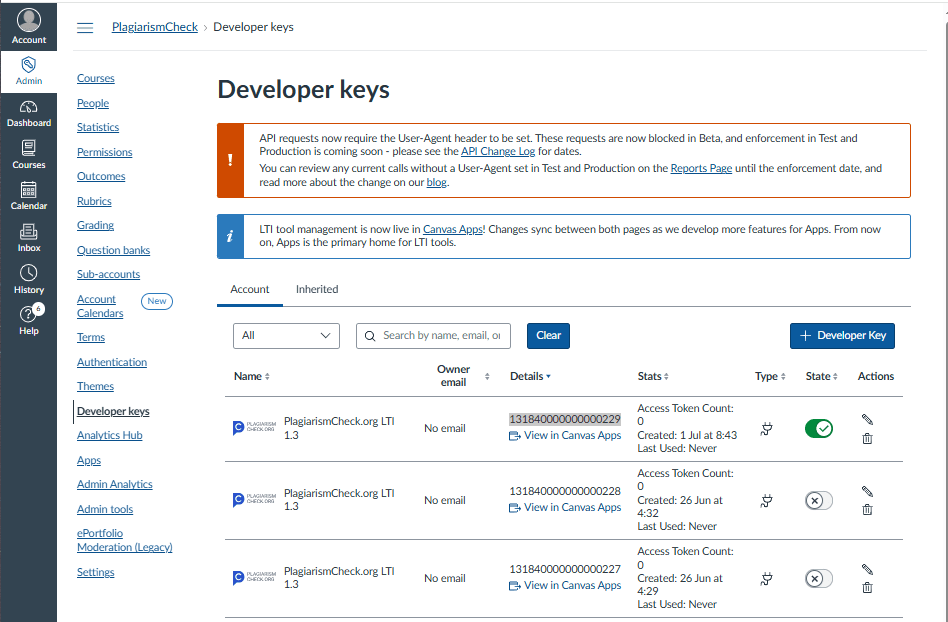
- Click Enable & Close. The key appears in the Developer Keys list with state On — that’s what makes it available across the account.
Step 8: Add new App
- Copy Client ID for the key you created.
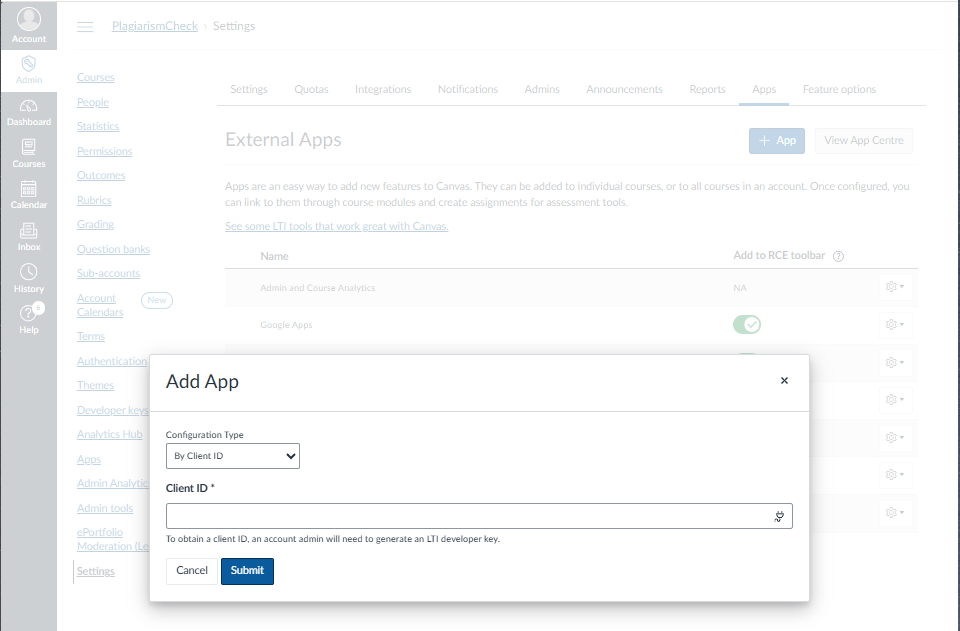
- Then navigate to Settings, click on Apps → View App Configurations → +App, choose Configuration Type = By Client ID, paste copied Client ID and click Submit.
Step 9: Create a test assignment
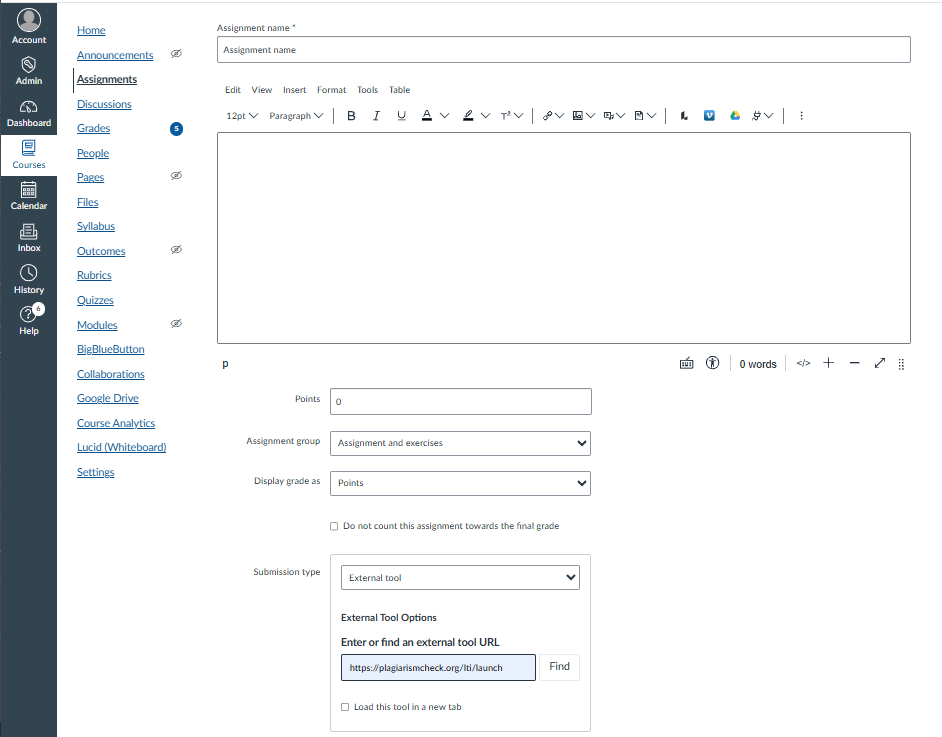
- Open any course as a teacher, go to Assignments → + Assignment , and in Submission Type choose External Tool. Enter the link https://plagiarismcheck.org/lti/launch in the Enter or find an external tool URL field.
Testing the integration
After registration, switch to a test course and create an assignment that uses PlagiarismCheck as its external tool. Submit a short sample document as a student, return as the instructor, and confirm that the originality report opens and the grade syncs back to the gradebook.
Troubleshooting
Tool stays Pending and never activates
Reopen the registration page in another tab and check that the URL you pasted into Canvas hasn’t expired. Registration URLs are single-use; generate a new one and repeat the registration step.
Originality reports don’t appear in the gradebook
Confirm that Assignment and Grade Services and Names and Roles Provisioning are enabled on the tool. In Canvas, verify the assignment was created with PlagiarismCheck as the submission type.
Students see an error when launching the tool
Ask the student to clear cookies for your LMS domain and retry. If the error persists, copy the error code from the launch screen and contact support@plagiarismcheck.org.
Need help?
Email support@plagiarismcheck.org — please include your institution name, the LMS version, and a screenshot of any error you see.