
- Overview
- Account guides
- Blackboard
- Administrator’s guide – How to connect PlagiarismCheck with Blackboard LTI 1.3 (Dynamic Registration)
- Administrator’s guide – How to connect PlagiarismCheck with Blackboard LTI 1.3 (Manual Registration)
- Brightspace
- Canvas
- Google Classroom
- Moodle
- Schoology
Administrator’s guide – How to connect PlagiarismCheck with Blackboard LTI 1.3 (Dynamic Registration)
This guide walks Blackboard administrators through enabling the PlagiarismCheck.org LTI 1.3 integration using dynamic registration. Once enabled, instructors can attach PlagiarismCheck to any assignment, students submit their work directly inside Blackboard, and originality reports plus grades flow back automatically.
Before you start
You’ll need:
- Administrator access to your Blackboard Learn instance.
- A developer account at developer.blackboard.com — Anthology’s Developer Portal where every LTI 1.3 app for Blackboard is first registered.
- An active PlagiarismCheck.org organisation account with Admin (Owner) role. If you don’t have Admin access, but you need it, please contact us here.
Note: LMS Blackboard integration is a two-stage process. First you register the app at developer.blackboard.com (the Anthology Developer Portal). Then you install that registered app inside your Blackboard Learn instance via LTI Tool Providers. Both stages are required.
Note: Dynamic registration is the fastest path. You’ll paste one URL on the Anthology Developer Portal, then connect the resulting Application ID to your Blackboard Learn instance — that’s it.
Step 1: Navigate to Integrations
- Login to PlagiarismCheck and follow Profile → Integrations or just click on this link https://plagiarismcheck.org/profile/integrations-list. On the list of integrations scroll until you see Blackboard.
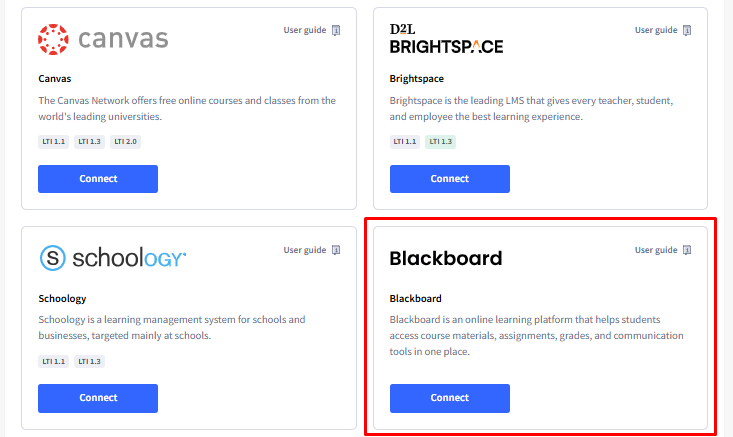
Step 2: Generate your registration URL
- On the PlagiarismCheck registration page, select Dynamic tab, click Generate registration URL and then Copy.
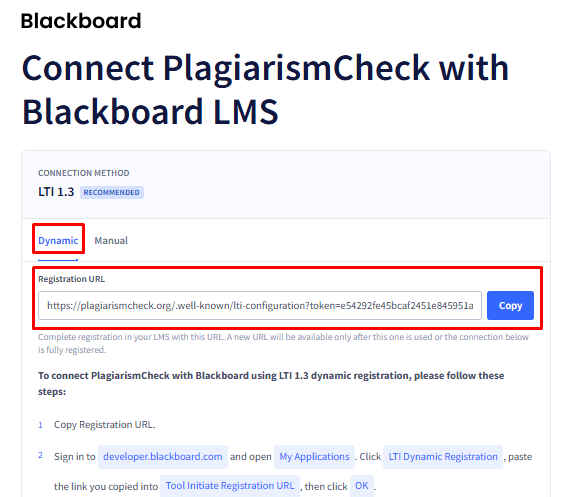
Step 3: Open the Anthology Developer Portal
- In a new tab, sign in at https://developer.blackboard.com/portal/applications. This is the Anthology Developer Portal, where every LTI 1.3 application for Blackboard is first registered. If you don’t have any apps yet, you’ll see two buttons.
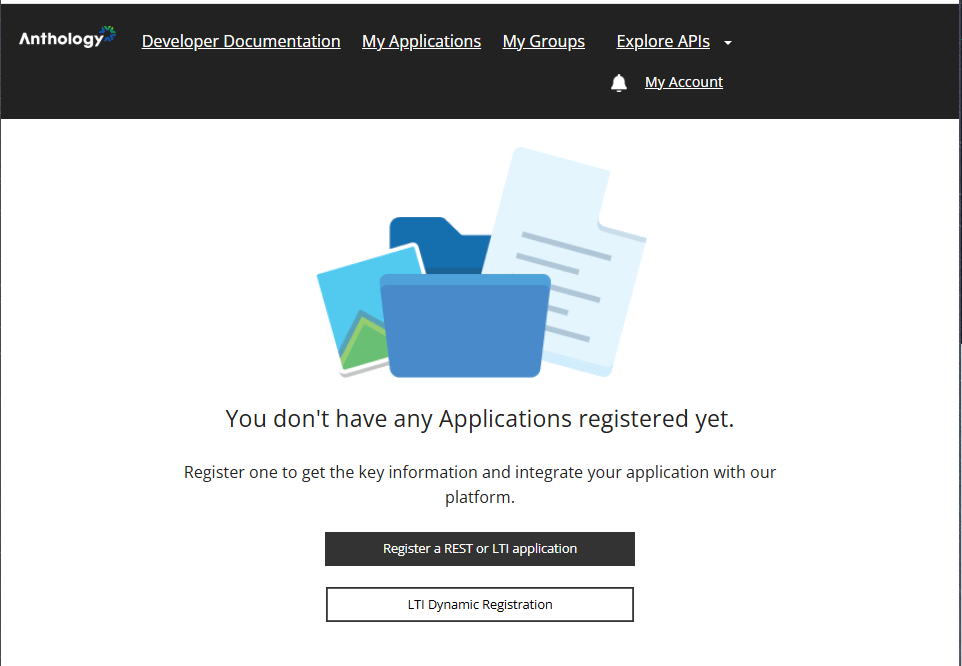
Step 4: Start dynamic registration
- Click LTI Dynamic Registration. An LTI Advantage Dynamic Registration dialog opens with a single field, Tool Initiate Registration URL.
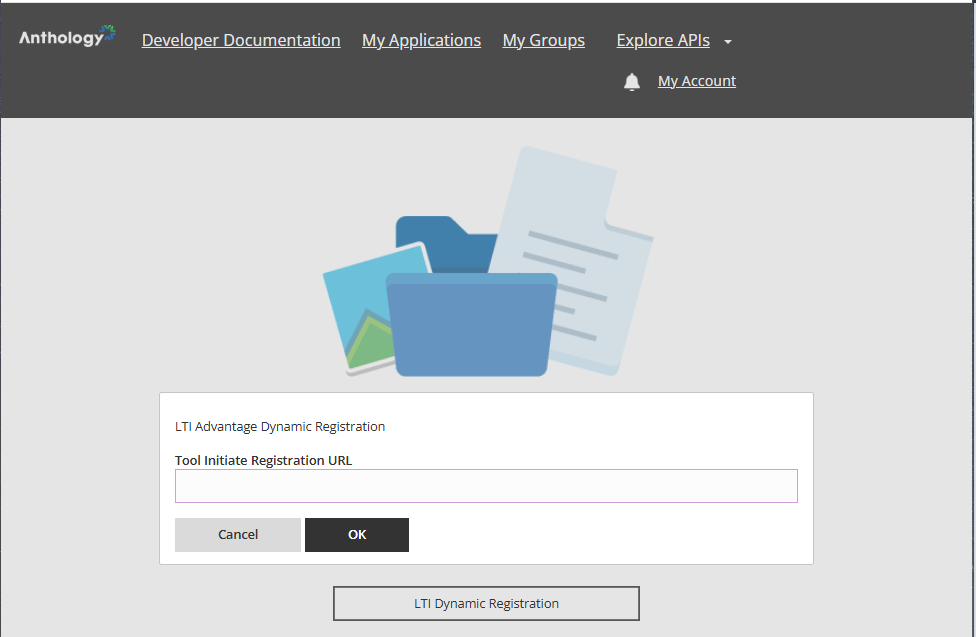
Step 5: Paste your URL
- Paste the URL you copied from PlagiarismCheck in Step 2, then click OK. Blackboard fetches PlagiarismCheck’s tool configuration in the background.
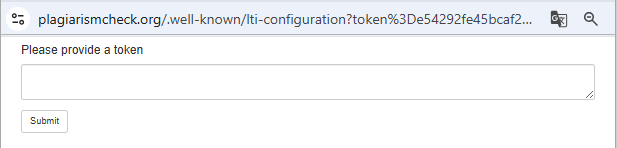
Note: If a small browser pop-up appears asking you to confirm a token, copy this token from the PlagiarismCheck registration page (Step 2 of this guide) and paste it to the “Please provide a token field”, then submit the form. This is PlagiarismCheck’s confirmation step that the registration is genuinely coming from your admin session.
Step 6: Confirm the application is registered
- Once registration completes, you’re returned to My Applications. A new PlagiarismCheck.org LTI 1.3 app appears in the list. Copy its Application ID — it’s a UUID like 3191b46b-4a98-4357-9e1c-9299a2eXXXXX. You’ll need it in the next step.
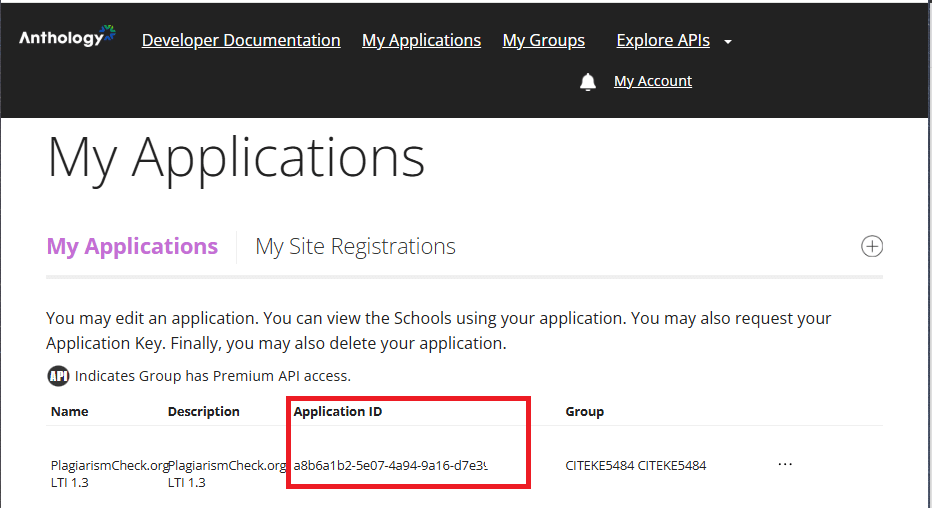
Note: The Application ID is the value Blackboard Learn calls the Client ID. They’re the same value with different names — Anthology uses one term, Learn uses the other.
Step 7: Open your Blackboard Learn admin panel
- Switch to your actual Blackboard Learn instance (your institution’s Blackboard URL, not developer.blackboard.com). Sign in as a system administrator. Open the Administrator Panel and locate the Integrations section — you’ll find LTI Tool Providers there.
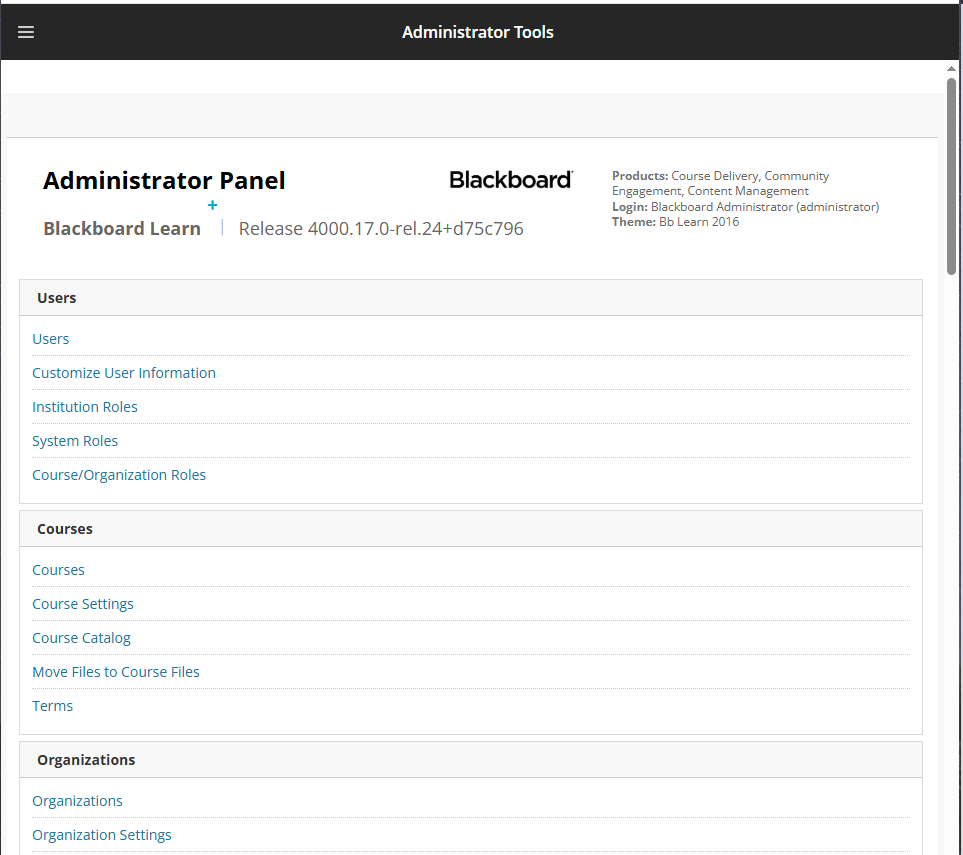
Step 8: Register the LTI 1.3/Advantage Tool
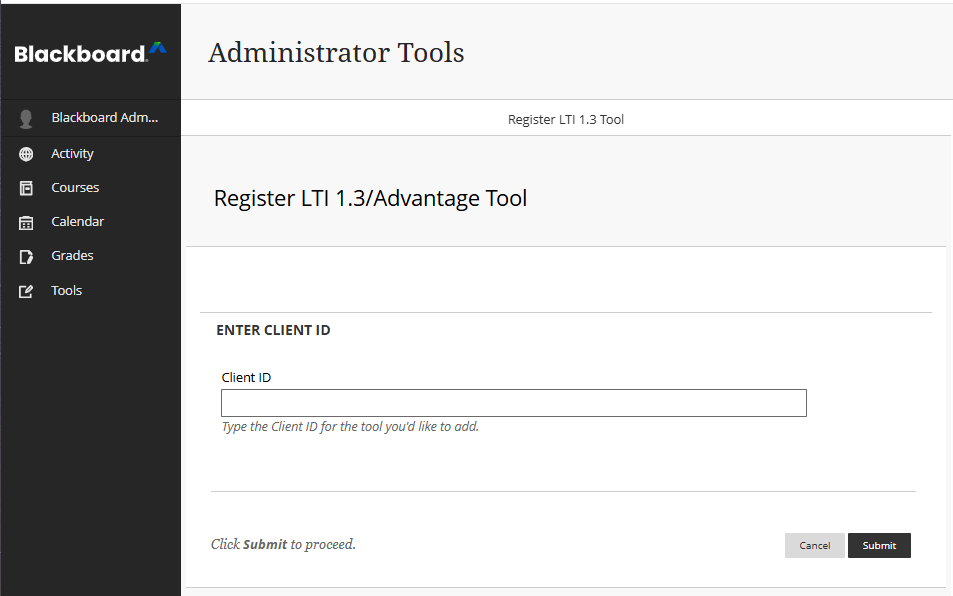
- On the LTI Tool Providers page, click the Register LTI 1.3/Advantage Tool link at the top.
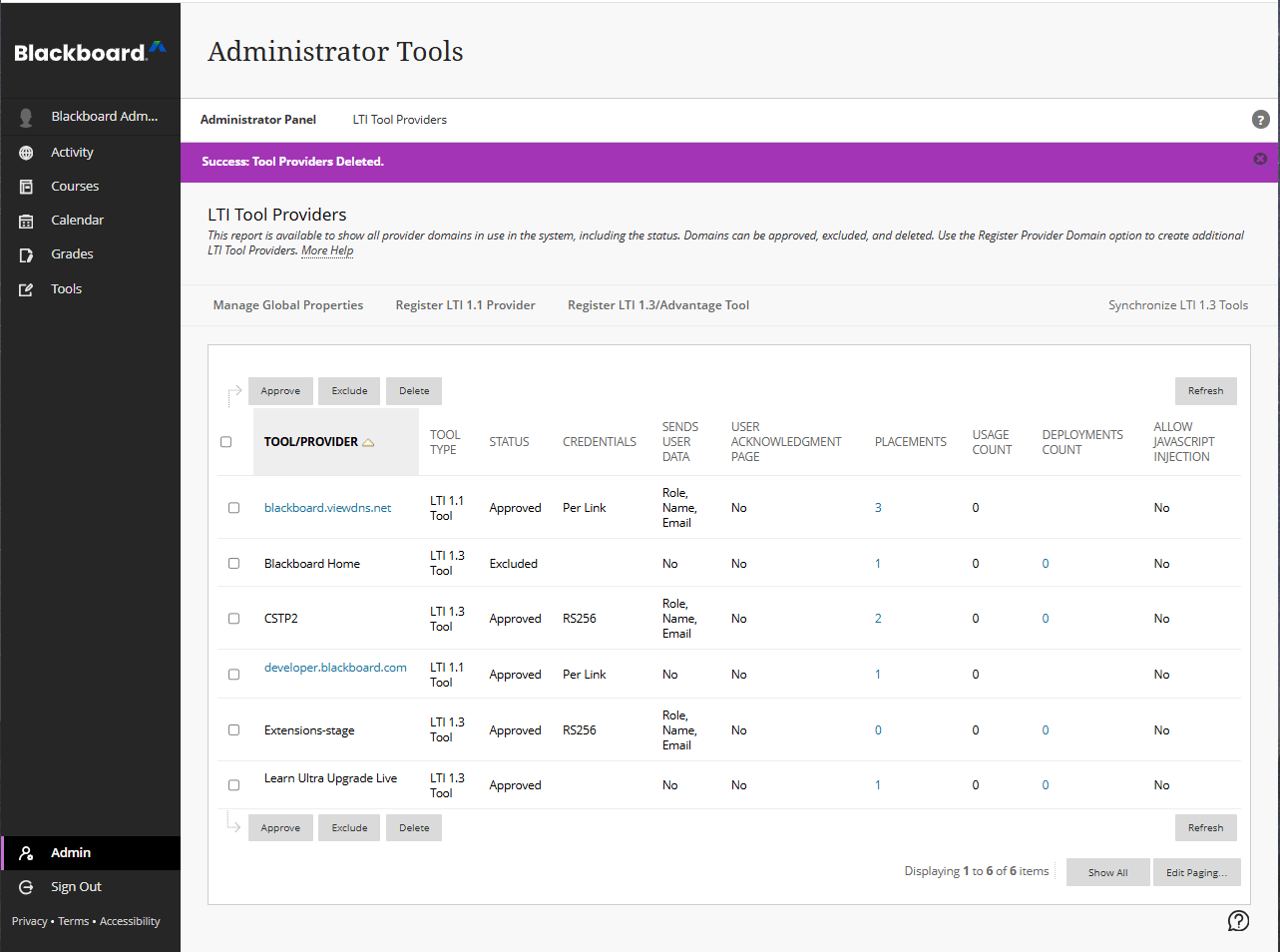
- Blackboard asks for a single Client ID. Paste the Application ID you copied in Step 6 and click Submit.
Step 9: Review and approve the tool
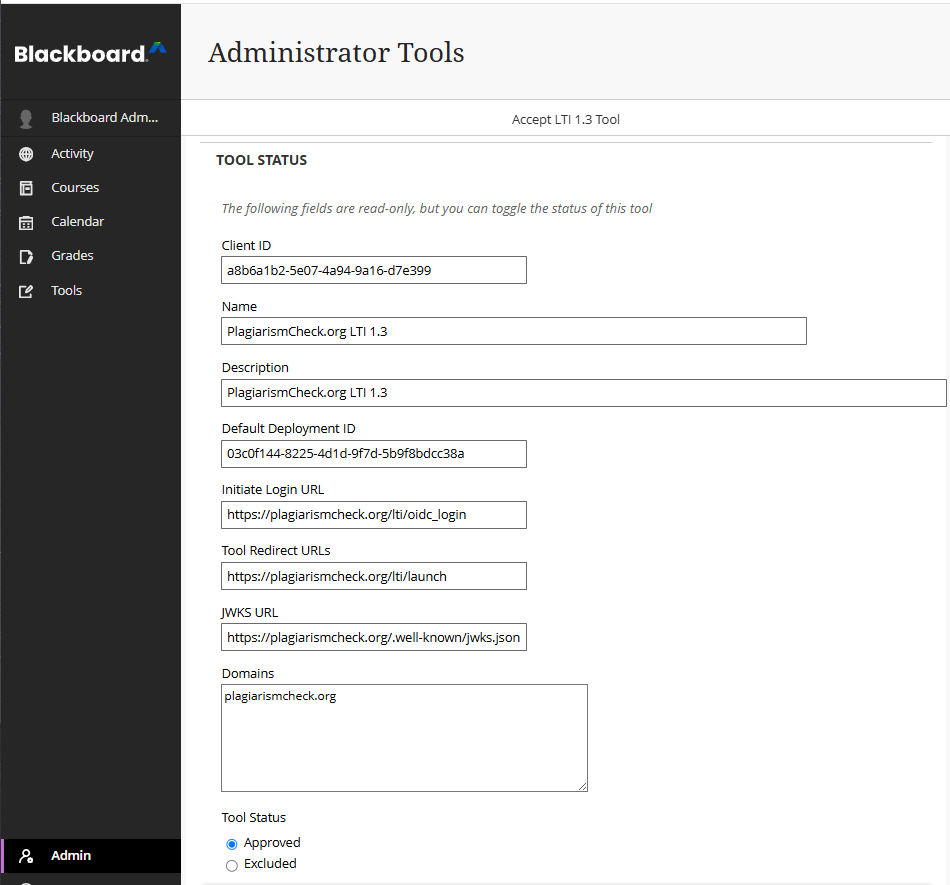
- Blackboard auto-populates the tool’s name, description, deployment ID, Initiate Login URL, Tool Redirect URLs, JWKS URL and domains from PlagiarismCheck’s configuration. The fields are read-only — you can only change Tool Status and the Institution Policies below it. Switch Tool Status from Excluded to Approved.
Step 10: Configure Institution Policies
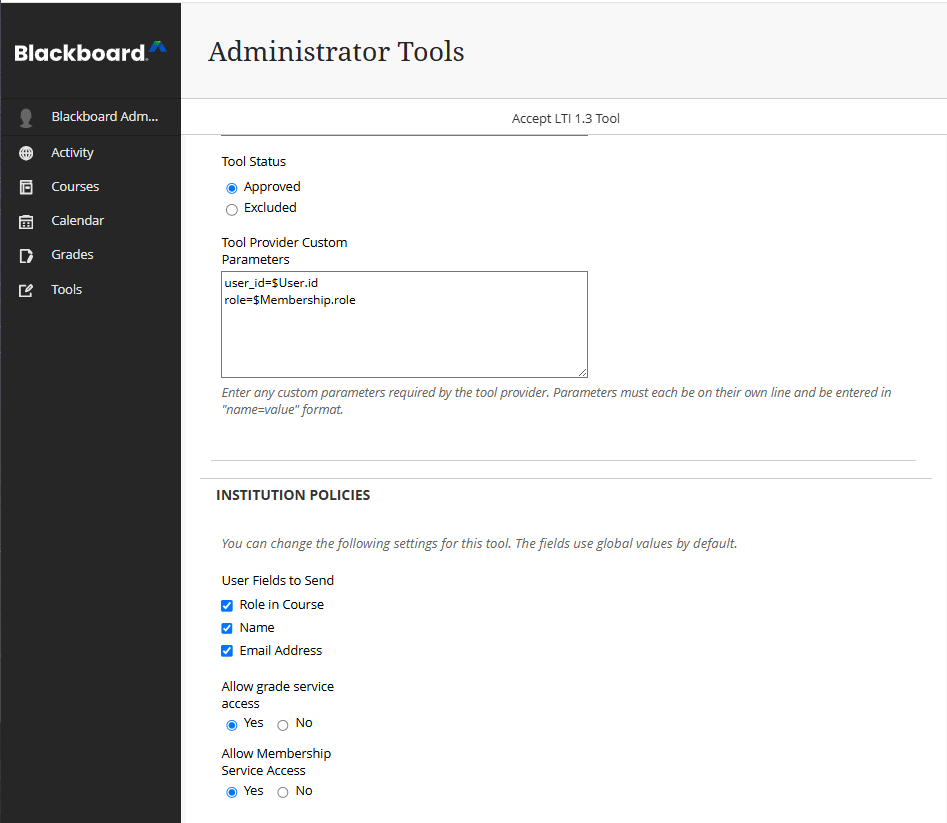
- Scroll down to Institution Policies. These control what user data Blackboard shares with PlagiarismCheck and whether the tool can write back to the gradebook. Set them as follows:
- User Fields to Send – tick Role in Course, Name and Email Address. PlagiarismCheck needs these to attribute originality reports to the correct student.
- Allow grade service access – Yes. Required so PlagiarismCheck can post similarity scores and grades back to the gradebook.
- Allow Membership Service Access – Yes. Required so PlagiarismCheck can read the course roster.
- Show User Acknowledgement Message – leave as No unless your institution requires it.
- Click Submit at the bottom.
Step 11: Confirm
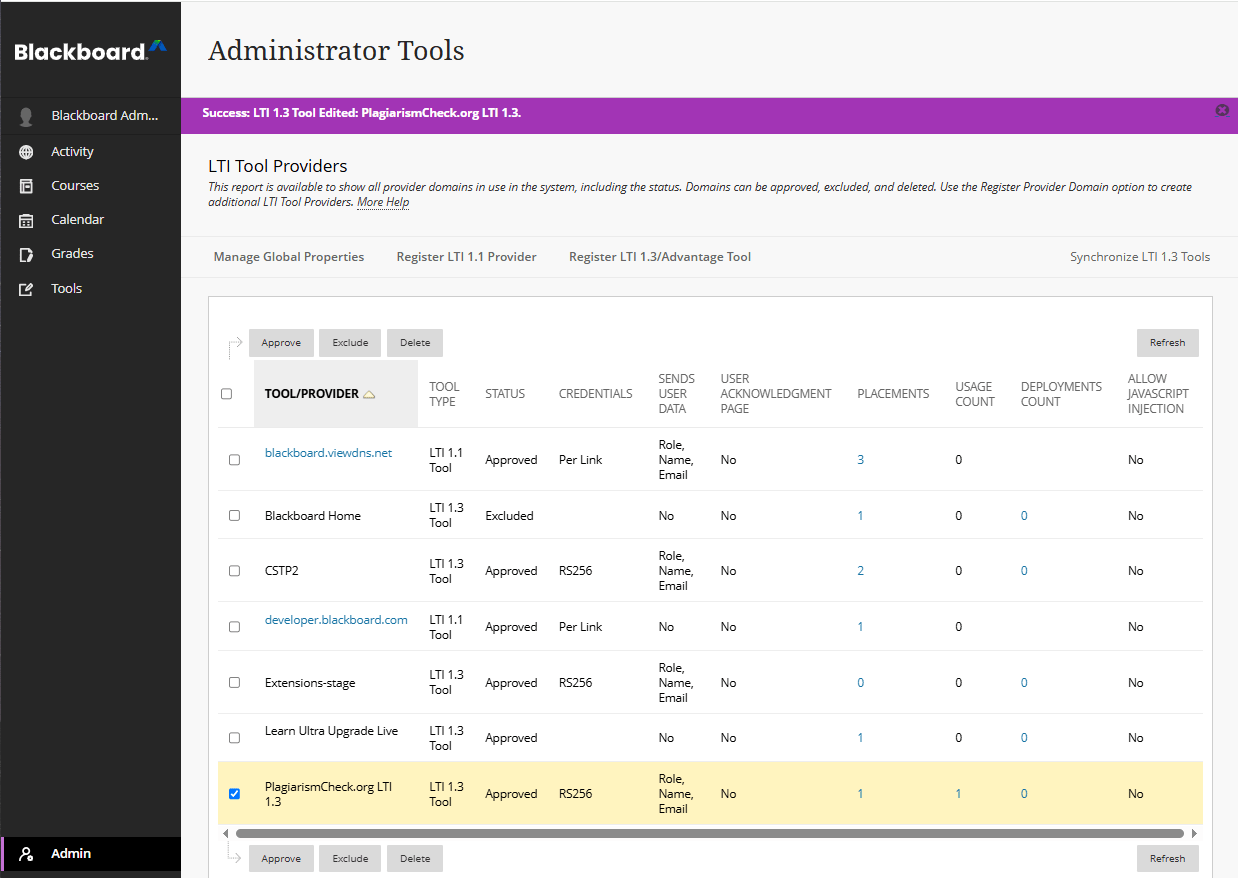
- Blackboard returns to the tool list with a success banner. The PlagiarismCheck.org LTI 1.3 row should show Approved, credentials RS256, and Role, Name, Email under user data.
Testing the integration
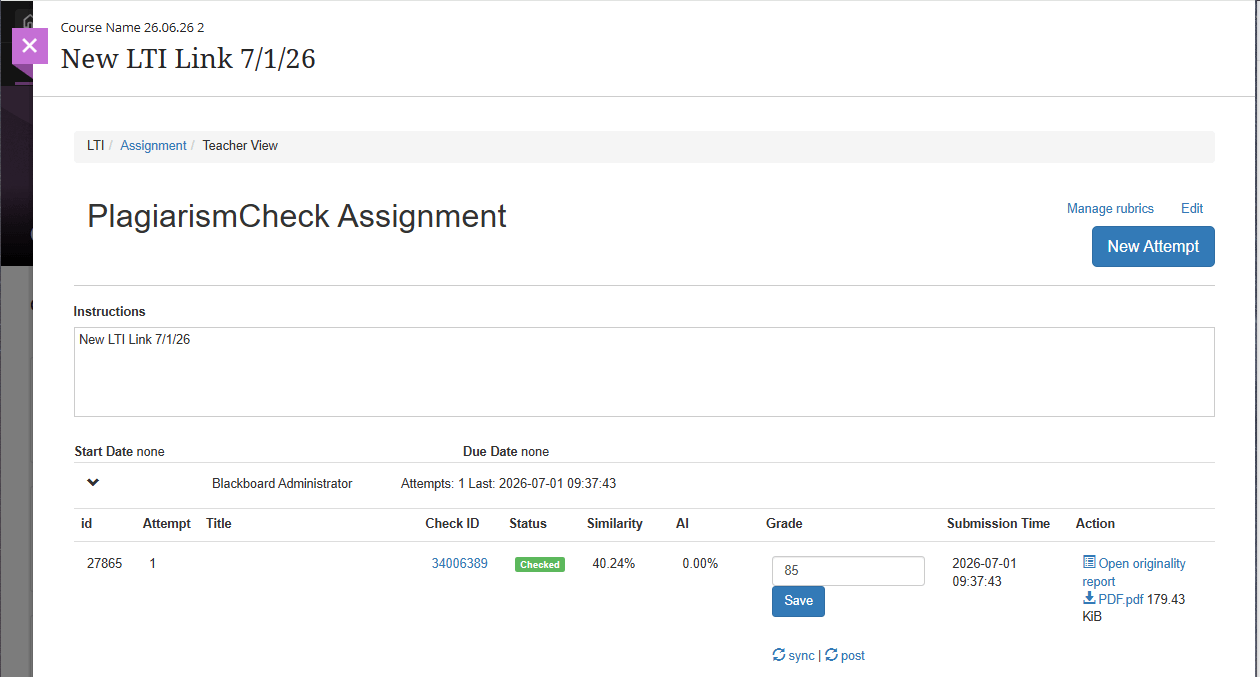
After registration, open a test course as an instructor and add the tool as content. Submit a short sample document as a student, return as the instructor, and confirm the originality report opens and the grade syncs back to the gradebook.
Troubleshooting
Tool registered in My Applications but not visible in Blackboard Learn
Registering the app at developer.blackboard.com only adds it to the Anthology Developer Portal. To make it usable inside your Blackboard Learn instance you also need to register the LTI 1.3/Advantage Tool in your Learn admin (Step 7 onwards). Without this, instructors won’t see the tool in their courses.
‘Bad Request’ or ‘Invalid Client ID’ when registering in Learn
Double-check that you pasted the full Application ID from My Applications, not the Application Key or Secret. The Application ID is a UUID-style value like 3191b46b-4a98-4357-9e1c-9299a2e0XXXX.
Originality reports don’t appear in the gradebook
Confirm that Allow grade service access and Allow Membership Service Access are both set to Yes on the tool’s Institution Policies section. If you changed these after the first launch, ask the instructor to re-create the assignment.
Students see an error when launching the tool
Ask the student to clear cookies for your Blackboard domain and retry. If the error persists, copy the error code from the launch screen and contact [email protected].
Need help?
Email [email protected] — please include your institution name, your Blackboard Learn release/version, and a screenshot of any error you see.